
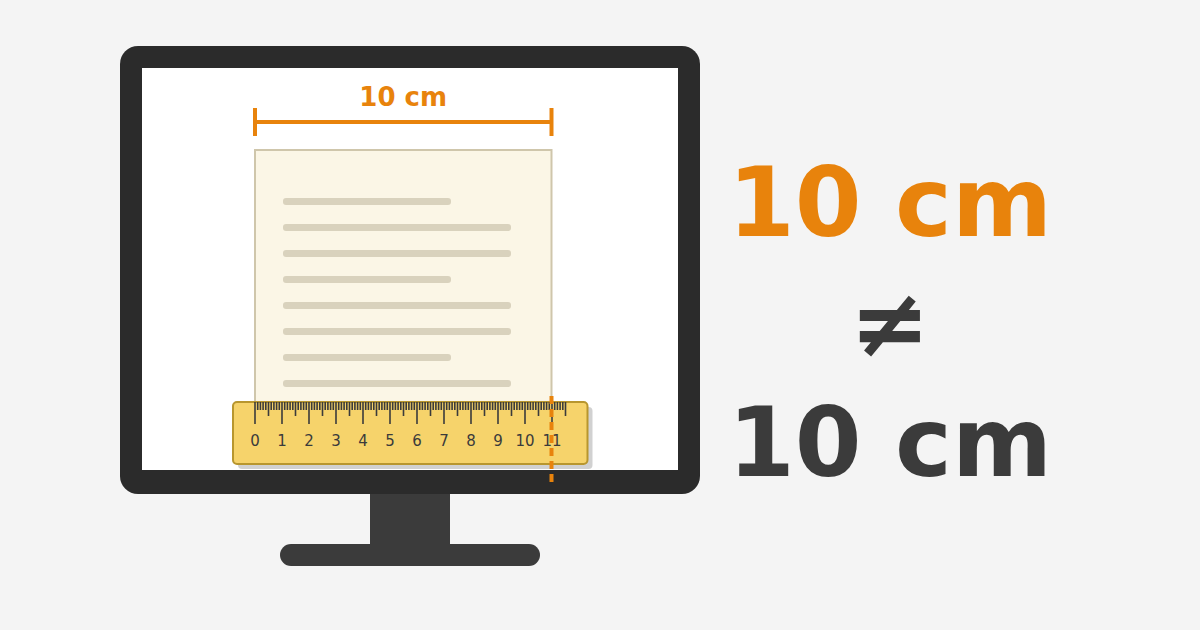
Most of the time we do not care how large something appears on screen, as long as it is legible. There are fields, though, where the size is the information itself, and 1:1 presentation, for example 10 centimetres in the original and 10 centimetres on screen, is a requirement:
- Archives and cultural heritage: a scanned document, a seal, a coin, a postage stamp, where the dimensions are part of the description of the object.
- Page layout and prepress (DTP): a page, a type size or a package, checked at the size it will be printed.
- Medical applications: eye tests, where the size of the letters together with the distance determines the result, and the display of X-rays and mammograms at real size.
- Vision research: experiments that run in the participant’s browser and need the size of the stimulus in degrees of visual angle, and therefore its physical size.
- Engineering and drawing: drawings at 1:1 scale, the footprint of a component, a sewing pattern.
- E-commerce: ring sizing, spectacle frames, “see it at its real size”.
On paper the problem has been solved with a test square: PDF sewing patterns ask to be printed at 100% and include a square of known side, which you measure before cutting any fabric. On screen it has not been solved, either on the web or, entirely, in Linux applications.
My own reason is the first one: I want a scanned document from my archive, which measures 10 × 10 cm on paper, to measure 10 × 10 cm on screen as well. Here I explain why this is hard, what I found by measuring my two monitors, and what tools I built.
The short answer
A page cannot find out on its own how many centimetres the reader’s screen is. To show something at physical size it needs:
- calibration, with a bank card or a ruler;
- storing the effective DPI, the pixels actually drawn per inch of glass;
- recomputing the CSS pixels whenever the zoom changes;
- and, for the file itself, its scale: how many pixels of the file make one centimetre of the original.
The monitor’s EDID is a useful starting value, not a guarantee: it can be wrong.
A little history: how the web gave up on real centimetres
CSS has units that look physical: cm, mm, in, pt. In CSS 1 and 2 they were designed to
correspond to real lengths. Browsers, however, had no reliable way to learn the size of the screen,
so the result differed from one to the next. Internet Explorer and WebKit had already locked the
inch at 96 pixels, and around 2010 the revision that became CSS 2.1 made it the rule:
1in = 96px. Since then width: 10cm always means 378 CSS pixels, whatever the screen. On a
14-inch laptop at 1920 × 1080 and 100% scale, which has about 157 pixels per inch, the “10 cm”
come out at about 6.1 cm.
In 2010 separate “true” units, truemm and truept, were proposed on the CSS mailing list. The
objection that prevailed was that they help no one as long as the relation between pixels and real
length is not known with certainty, and that mixing logical and true units would break pages.
Firefox shipped an experimental true millimetre in 2010, mozmm, mainly for the size of touch
targets, and removed it in version 59 (2018), because no other browser was interested in
implementing it.
On the web, the matter ends there for privacy reasons. The operating system usually knows the physical size of the screen, because the monitor itself declares it in the EDID data it sends over the cable. Browsers do not pass this on to pages: screen characteristics are a well-known means of fingerprinting (recognising a computer without cookies), and the trend is to hand out less data, not more. Tor Browser hides the physical screen values entirely. A 2019 request to expose EDID data to developers went nowhere.
So no page can know on its own how big the reader’s screen is. The number has to be measured.
The path of the size has five stages, and an error in any one of them changes the final result:
monitor (EDID) → driver → compositor / scaling → application or browser → CSS pixels
The web sees only the last stage. It sees neither the physical size the monitor declares nor the scaling the operating system has chosen.
And on Linux? The operating system knows, but not always correctly
A regular application is not shut in a box the way a web page is. It can ask the operating system:
Windows has MDT_RAW_DPI, Qt has physicalDotsPerInch, GTK has gdk_monitor_get_width_mm, and on
X11 xrandr prints the size in millimetres (e.g. 527mm x 296mm). Even so, applications fail in
the same three ways:
- The data may be wrong. The API simply passes on whatever the monitor’s EDID says. Rounded sizes, zero sizes (televisions, projectors) and wrong values go through unchecked.
- Scaling confuses logical with physical pixels. This is the most common error. GNOME’s Evince, when the screen had scale 2 on Wayland, showed “100%” at twice the size. KDE’s Okular used to render at a fixed 72 DPI, so “100%” came out at about 67%. Photoshop wants the user to type in the screen resolution, and on a Retina display to remember to double it.
- Multiple monitors. DPI belongs to a monitor, not to the application. A window spanning two monitors of different density has no single correct size.
That is why even medical imaging, where real size is a requirement, does not trust the operating system alone: it calibrates, and checks with a ruler. The IHE test for mammography displays requires horizontal and vertical to agree within 2.5%.
Two densities, and what each one does
To understand what goes wrong you need two numbers, which answer different questions:
- CSS ppi: how many CSS pixels fall into one real inch of glass. Whatever is written in CSS is in CSS pixels, so this number decides the size.
- Effective DPI: how many device pixels the browser (or any application) draws per real inch. It
is always
CSS ppi × devicePixelRatio, and it decides the sharpness: how many pixels the image file needs.
The term “effective DPI” is not established, and beware: on Windows it means almost the opposite, the scaled, logical value (96 × scale, e.g. 120 at 125% scale), while the physical number is called “raw DPI” there. Here, by effective DPI, I always mean the pixels actually drawn per inch of glass. It is closer to the “effective ppi” of printing: how many pixels of an image fall into one inch at the final printed size.
The effective DPI is not necessarily the density of the panel. With fractional scaling (e.g. 125%), the system may draw onto a larger surface and then shrink it down to the screen’s pixels. That “drawn surface” is what counts, and this is where the story of my first monitor begins.
Two monitors, two different problems
On my desk I have two 24-inch monitors side by side, and each one shows a different problem:
- Lenovo P24QD-40: correct EDID, muddled pixels. The size it declares is correct, but how many
pixels are drawn into one inch depends on the session: 197 on X11, 123 on Wayland, for the
same physical screen. The size in CSS stays the same, because
devicePixelRatiochanges in proportion. Whoever confuses the two gets the document at double or half size, the Evince trap. And on X11 the monitors are tied to each other: the Lenovo at 125% scale forces the LG next to it to be drawn at double size too. - LG 24MP57VQ-P: the EDID lies. It declares a 21.7-inch screen while it is 23.8, and exactly the same is declared by all 127 units of the same model in the linuxhw/EDID database. Anything that trusts the operating system draws a 10 cm document at 10.98 cm. The bank card gave the right number, 0.6% off the model’s specifications.
The lesson is what I wanted to write from the start: on the LG, even a “correct”, native solution on Linux needs calibration. Any application that trusts the EDID, however carefully it handles scaling, will show the document 10% larger. The EDID is a good starting value, but only an external reference (a card, a ruler or a spec sheet) catches the error.
The measurements in detail, with the tables for each monitor and each method, are on the page Two monitors: the measurements in detail.
The solutions
The logic is the same as that of the best applications: an automatic starting value, a calibration that overrides it, and an indication of where the current size came from.
In the browser: the site’s tools
The tools run entirely in the browser, and nothing is sent anywhere:
- Calculate your monitor’s DPI: you drag a virtual ruler until it matches a real one, or you lay a bank card against the orange marks. The card has the same size everywhere (ISO/IEC 7810 ID-1, 85.60 × 53.98 mm) and almost everyone has one, whereas not everyone has a ruler. It gives the CSS ppi and the effective DPI, and keeps them in the browser so that the other tools can find them again.
- Pixel test: squares hatched one dot apart. They show by eye whether the screen renders the pattern intact or resamples it, and the square that measures exactly one inch names the effective DPI. It is the cross-check.
- Your screen resolution: resolution,
devicePixelRatio, viewport, as the browser sees them. Where the browser cannot tell a real Retina display from a “draw big, then shrink” mode, it asks the reader for the panel’s native resolution instead of guessing. - Text size & space: how much physical space a text takes up, on graph paper, with the DPI the first tool measured.
Instead of a card, the diagonal of the screen is enough, if you know the panel’s real resolution; it is a figure most people remember:
effective DPI = √(width² + height²) / diagonal in inches
with width and height the drawn pixels (screen.width × devicePixelRatio). It has two weaknesses.
Monitors are sold with a rounded size (a “24-inch” is often 23.8″), and a wrong answer shows up
nowhere: if someone says 24 for a 27-inch monitor, the document comes out 12.5% larger with no sign
at all. With the card you can see whether it matches.
The recipe for a page that wants to show a document at physical size is in the garden note
Web presentation of a document at physical size. It also
covers the trap of multiplying by devicePixelRatio twice, which makes the document come out twice
as large. The gist: store the effective DPI, because it does not change with the browser’s zoom, and
compute the size in CSS from it each time.
A 10 × 10 cm square, if you know the effective DPI
Take the LG as an example, with the card value: effective DPI 186.3, and devicePixelRatio
2 (X11 with both monitors). The devicePixelRatio is given by the browser; the effective DPI you
have to supply yourself.
- Device pixels per centimetre: effective DPI / 2.54 = 186.3 / 2.54 = 73.35.
- Device pixels for 10 cm: 73.35 × 10 = 733.5. That is how many pixels the image file needs on each side so as not to be stretched (here at least 734).
- CSS pixels for 10 cm: 733.5 /
devicePixelRatio= 733.5 / 2 = 366.7. This is the number that goes into the CSS.
<div style="width: 366.7px; height: 366.7px; border: 1px solid black"></div>
In JavaScript, with the current devicePixelRatio:
const effDpi = 186.3;                                // measured, belongs to the monitor
const px = 10 / 2.54 * effDpi / devicePixelRatio;    // CSS pixels for 10 cm
box.style.width = box.style.height = px + "px";
Two points need care. Do not write the 733.5 of step 2 into the CSS: the browser will multiply it by
2 again and the square will come out at 20 cm. And if the reader zooms (Ctrl +), it is the
devicePixelRatio that changes, not the effective DPI; so repeat step 3 with the new value. In the
end, if you measure it, it should show 10 cm.
On Linux: effective-dpi
For the operating-system side I wrote effective-dpi, two small Python tools with no dependencies, for X11 and for GNOME on Wayland:
effective-dpiprints, for each monitor, the physical size, the panel pixels, the drawn surface, the effective DPI, thedevicePixelRatio, the CSS ppi and how many CSS pixels make 10 cm. What I found in no other tool is precisely that it measures the drawn surface and not the panel (197 instead of 123 on the Lenovo under X11), and that it translates the result into CSS units. On Wayland it shows every case, because there how many pixels get drawn depends on the application: a Wayland application with fractional scaling draws the panel’s pixels, an X11 application through XWayland fewer, and GNOME enlarges them (blurrily).effective-dpi-calibrateopens a window with the outline of a bank card at the size the EDID predicts. You lay the card on it, enlarge or shrink the outline until it matches, and save it. What is saved is a size in millimetres, not a DPI, so that it still holds when the scale or the session changes.
The order of precedence is: size from the spec sheet (--size-mm), otherwise card calibration,
otherwise EDID, and the output always says which one it used. For the LG, after calibration:
HDMI-2  LG IPS FULLHD  [primary]
  physical size   523.7 × 294.6 mm  (23.6″ diagonal, card calibration 2026-10-18)
  EDID size       480 × 270 mm  (with it: 101.6 dpi)
  ...
  ⚠ with the EDID size everything would come out 9.1% too large: the EDID is wrong for this monitor
The two routes—the card in the browser and the EDID with the drawn surface in the operating system—
are independent measurements of the same quantity, so each checks the other. The simplest check:
screen.width × devicePixelRatio in the browser must equal the drawn surface the tool reports.
Photographs and PDFs: the scale must be known
So far I have spoken as if the file we show already contained the right scale. That does not hold by itself. For a 10 cm document to come out as 10 cm on screen, we also need to know how many pixels of the file correspond to the 10 cm of the original. If the original sits inside a photograph or a PDF, this is a second, independent calibration.
original → file pixels → CSS pixels → drawn pixels → centimetres on screen
For 1:1 presentation every mapping in the chain must be known.
A raster photograph has one undisputed size: width and height in pixels. It often also has
resolution fields, usually XResolution, YResolution and ResolutionUnit in JPEG/TIFF or the
equivalent pHYs in PNG. These declare how many pixels per inch (PPI, often but loosely called
DPI) are intended for reproducing the image. For example, 3000 pixels at 300 PPI correspond to a
width of 10 inches.
These fields, however, do not prove the size of the object the photograph depicts. A photograph of a coin may declare 300 PPI whether the coin is 2 cm or 20 cm across. For a scanned document, the relation becomes reliable only if the scanning scale is known or if the image contains a ruler or another object of known size. A 10 cm original scanned at 300 PPI, for example, is about 1181 pixels wide.
And these fields can be changed after the fact without a single pixel changing. If a 3000-pixel image is declared as 150 instead of 300 PPI, its suggested width changes from 10 to 20 inches, but it gains no more detail and the depicted object does not get any larger. That is why PPI is a useful instruction for display or printing, not evidence of the scale of the original.
PDF is different: it is not necessarily an image but a description of a page, which may contain
text, vector drawings and raster images. The physical size of the page is defined by its box
(MediaBox), in PDF units, which by definition are 1/72 of an inch; an embedded raster image has
pixels, but the size at which it is placed on the page is defined by its transformation. So there is
no single “DPI of the PDF”: the same 3000-pixel image can be placed at a width of 10 inches (300 PPI)
or 15 inches (200 PPI).
Here too, as with PPI, page size and placement can be changed after the fact. For 1:1 presentation, then, the PDF or the image must come with reliable information about the scale of the original. The web page then uses that pixel-to-original relation together with the screen calibration I described above. Without explicit CSS, the browser as a rule shows one image pixel as one CSS pixel. The HTML Standard also provides for the case where it reads the PPI from the EXIF, but it counts it relative to 72: an image at 144 PPI comes out at half the size in CSS pixels. So not even then does the image’s PPI guarantee a physical size.
Why nobody has solved it
Three reasons, which add up:
- Few people need it, and they have other solutions. Most people want text legible, not exact. Operating systems and CSS deliberately chose “comfortable size”: a letter should look the same on a phone and on a television across the room, so its physical size must differ. Where real size matters, people print. Paper is the medium where the problem has been solved.
- Nobody owns the whole chain. A correct number needs five links, each with a different owner: monitor manufacturer (EDID) → driver → compositor (scaling) → toolkit → application or browser. The manufacturer has no reason to write 527 instead of 480, because nothing checks it.
- On the web, privacy closes the door. Even if every link were correct, the browser would not expose the physical size to the page.
What remains in the end is the one measurement no API can guess or leak: the reader compares, on the screen itself, against a real object of known size. That is why sites that need real size ask for a bank card, and why, as the LG showed, even Linux needs calibrating once to know correctly. 1:1 on screen is not a property of the file or of the CSS on their own; it arises only when the scale of the original is mapped, through a calibrated screen, onto the pixels that are finally drawn.
Sources
- W3C, CSS Values and Units Module Level 4: Absolute Lengths: the normative definition of the units
cm,mm,in,ptandpx. - CIPA, Exif 2.3: the
XResolution,YResolutionandResolutionUnitfields of an image. - W3C, CSS Images Module Level 4: Image resolution: by default CSS treats one image pixel as one CSS pixel; it can optionally ask for the resolution the file declares.
- WHATWG, HTML Standard: Preparing an image for presentation: when an image’s size is corrected by the EXIF
XResolution, relative to 72 PPI. - PDF Association, Files inside PDF: embedded images (Image XObjects) are placed and scaled on the page by a transformation.
- W3C, PNG: Physical pixel dimensions: the
pHYsfield for the physical pixel dimensions of a PNG. - Robert O’Callahan, CSS absolute length units (January 2010) and CSS units changes landed (August 2010): the
1in = 96pxchange andmozmm. - The www-style list: Jonathan Kew’s proposal for
truemm/trueptand Peter Linss’s objection (January 2010). - Mozilla bug 1416564: the removal of
mozmm(Firefox 59). - public-css-archive: request to expose EDID data (2019).
- Tor Browser issue 13636: screen values and privacy.
- Evince #1461 (100% at double size at scale 2) and #1493; Okular bug 191614 (fixed 72 DPI) and bug 268757 (a window across two monitors).
- Q. Li, S. J. Joo, J. D. Yeatman, K. Reinecke, Controlling for Participants’ Viewing Distance in Large-Scale, Psychophysical Online Experiments Using a Virtual Chinrest, Scientific Reports (2020): vision experiments in the browser, with screen calibration by card.
- IHE, mammography display test: 2.5% tolerance.
- linuxhw/EDID: the EDIDs of
GSM5AB8. - Screen tools: the measurements and tests that accompany the article.
- effective-dpi: the code, with the measurements and the comparison with the tools that already exist.
Leave a comment
Comments are moderated, and appear with the site's next update.